
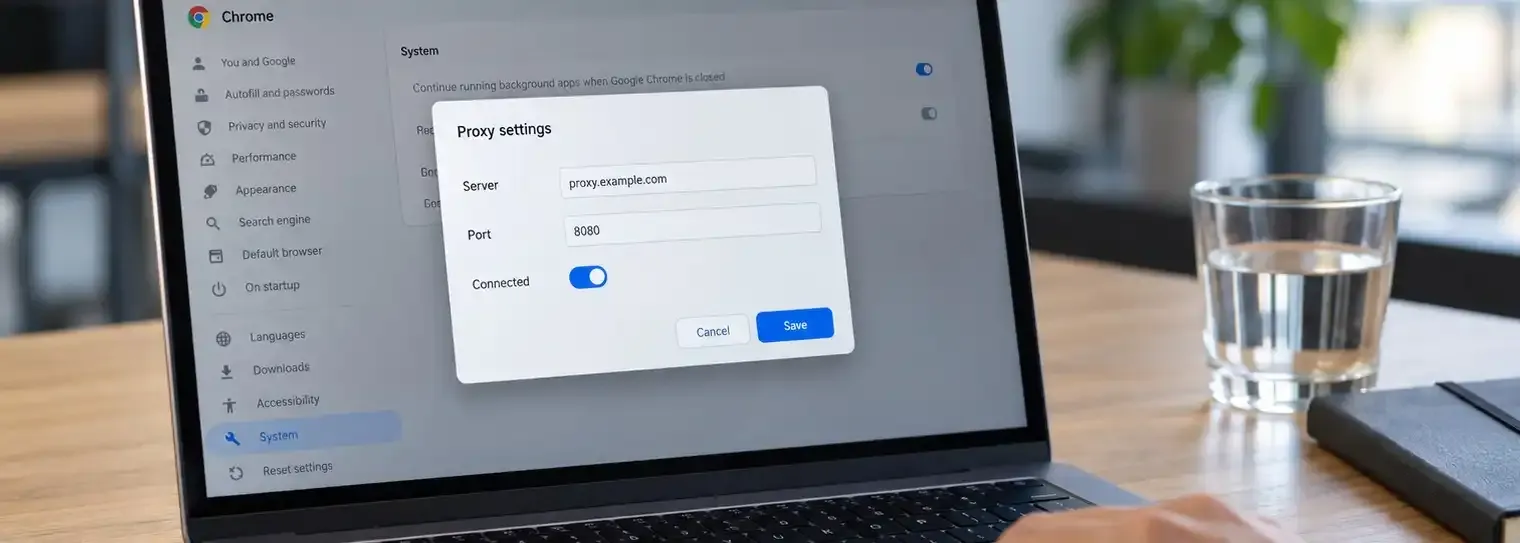

Chrome’s Proxy Settings Have a Small Surprise
Before changing your connection, it helps to know exactly what you’re changing.
You go looking for a proxy setting in Chrome, click the relevant button, and suddenly you’re in your computer’s network settings.
It feels like you’ve taken a wrong turn. You haven’t.
Chrome uses the operating system’s proxy settings by default. That means a change made there can also affect other applications that follow those settings. What looked like a browser adjustment may reach beyond the browser.
This is a useful detail to understand before entering a server address and hoping for the best.
A proxy gives supported browser requests an intermediary: instead of connecting directly to a website, Chrome sends them through another server. For someone checking a regional storefront, reviewing an advertising destination, or researching a market, that provides a different connection from which to observe the web.
Our guide to using a proxy server in Chrome covers those practical uses and introduces the CyberYozh browser extension as a way to manage connections from the toolbar.
There are two approaches worth separating.
Using your computer’s proxy settings makes sense when you want applications that respect those settings to use the configured connection. A proxy-management extension offers browser-level control instead. Chrome provides an extension API specifically for managing its proxy configuration.
The choice depends on the work you’re doing. If you only need to check a landing page in Chrome, browser-level switching may be more convenient than repeatedly changing your computer’s network configuration.
With CyberYozh’s extension, the workflow described in our guide is to install it from the Chrome Web Store, sign in, and choose from the proxies available in your account. The interface also provides access to IP reputation checks and other account tools.
Once connected, I’d pause before starting the actual task.
Open an IP-checking page and confirm that the visible address has changed as expected. Then load the website you intend to examine. A connection test and a useful working session are two separate checks.
For a regional storefront review, for example, I’d record the selected connection, the delivery location entered on the site, and whether I was signed in. That makes it easier to understand the result later—and to repeat the test under the same conditions.
I’d also avoid treating a proxy switch as a fresh browser identity. Changing the network route doesn’t itself clear cookies, sign you out, or remove the history associated with an account. Keep those details in mind when interpreting what a website shows you.
If pages stop loading after configuration, return to the last working setup and check one setting at a time. Confirm the server address, port, protocol, and authentication requirements with your provider. Chromium’s documentation notes that incorrect proxy settings can prevent pages from loading altogether.
At CyberYozh, we offer residential, mobile, and datacenter connections for different workflows. For everyday browser work, the useful starting point is a clearly defined task: which site you need to inspect, from which location, and for how long.
You don’t need an elaborate setup to begin. You do need to know which connection is active, verify the result, and know how to switch back.
That’s a good first experiment for your next regional website check. Save your observations, repeat the test, and see whether you can explain any differences.
If you’d like more approachable guides like this, subscribe to CyberYozh. We’ll keep working through the browser and network settings that are easy to click—and surprisingly easy to misunderstand.